


Orbital System Governance
Take Command of Windows Updates with Update Blocker
Update Blocker enforces governance over wuauserv, UsoSvc, and BITS, giving admins verifiable status markers they can check in moments.
Built for regulated patch cycles, virtual-desktop pools, and mission-critical workstations.

Core Protections
Three foundational tiers ensuring update governance stays consistent, traceable, and robust.
Shielding
Regulation-level execution with rollback-ready switches and clear audit trails.
Velocity
Real-time service checks with minimal management burden.
Full Governance
Fine-tuned administration of update services spanning all devices.
What Makes Update Blocker Stand Out
Tangible advantages crafted for dependable, protected Windows setups.
Pure & Promotion-Free
Completely free of advertisements, upsells, or concealed setup bundles.
Zero Idle Processor Load
No processor drain when dormant and no persistent background processes.
Lasting Enforcement
Stops the OS from auto-restarting services once governance is locked.
The Process Explained
Derived from the tool's native workflow and layout.
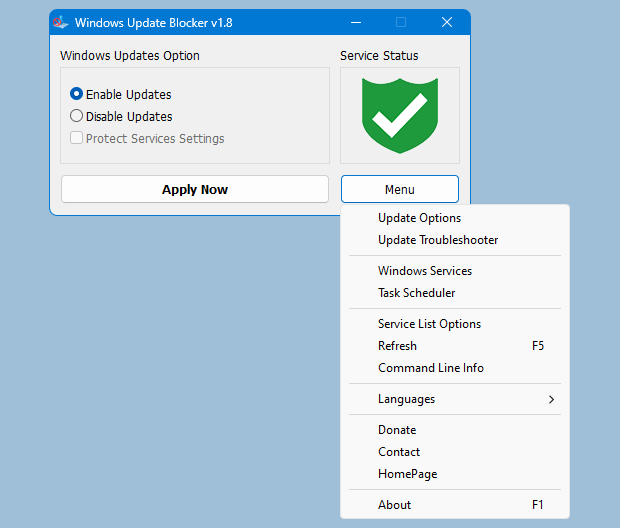
Phase 1
State Verification
A red shield indicates updates are halted; green means they are active.
Phase 2
Select "Halt Updates"
Pick the radio option to cease all update-related services.
Phase 3
Enable "Lock Service Configuration"
Blocks the operating system from auto-restoring update services.
Phase 4
Press "Apply Now"
Activate the rule without delay.
Step-by-Step Usage Guide
An exact reflection of the on-screen procedure.
Inspect Service State
The shield icon reflects the present condition: green for active or red X for inactive.
Choose "Stop Updates"
Select this option to immediately suspend all Windows update services.
Activate "Lock Service Configuration"
Stops Windows from undoing your modifications automatically.
Press "Apply Now"
Changes are enforced instantly without a system restart.
Manual Methods vs Update Blocker
An expert comparison between default OS handling and governed protection.
| Capability | Default OS Behavior | Update Blocker Shield |
|---|---|---|
| Safety | Hand-editing the registry invites configuration drift and errors. | Governed rule deployment with undo-ready activation. |
| Persistence | Patches or restarts can silently turn updates back on. | Rule-based lock ensures services stay under management indefinitely. |
| Velocity | Tedious, repeated manual tweaks on every machine. | Immediate confirmation and uniform rule distribution. |
Community Feedback
Genuine voices from daily operators and technical staff.
"At last—no unexpected reboots mid-tournament. Update Blocker v1.8 is the sole utility that truly silenced Windows 11. Elegant and brilliant."
Alex J., Gamer
"Overseeing ten office machines, updates were a constant headache. This utility spared me countless hours of registry tweaking. The service-guard switch is indispensable."
Sarah K., Office Manager
"Sleek, ad-free, and runs from a thumb drive. It delivers precisely what it promises—no fluff attached."
Michael D., Systems Admin
Update Blocker v1.8
WUB costs nothing, needs no install, and is intuitive.
File Details
- Version: 1.8 (Latest)
- File Size: 13.3 MB
- Format: Portable ZIP
- OS Support: Windows 11, 10, 8.1, 8, 7
- Developer: sordum.org
Minimum Requirements
- Windows XP and above
- 2 MB available storage
- Admin rights (suggested)
- No setup needed
a1b2c3d4e5f6789012345678901234567890abcdef1234567890abcdef1234567890Technical Q&A & Assistance
Straightforward responses covering safety, registry matters, speed, and reliability.
Is Update Blocker suitable for corporate environments?
Absolutely. It applies undoable policy rules with transparent, inspectable status lights.
Will it alter the registry or Group Policy?
It is able to set HKLM registry values that match Group Policy objectives when needed.
What services does it manage?
Main focuses are wuauserv, UsoSvc, and BITS—the core update orchestration services.
Does it work on Windows 11, including 24H2?
Confirmed. Engineered for ongoing compatibility with Windows 10, 11, and Server variants.
Are Defender signature updates blocked?
They remain untouched. Default rules do not interfere with security-intelligence updates.
Can I restore default settings immediately?
Correct. Reversing the toggle brings back standard update behavior instantly.
Is an installer necessary?
None required. The program is fully portable—no setup wizards or daemons.
Will it improve gaming or live-streaming stability?
Indeed. It minimizes surprise update processes during critical workflows.
How can I check whether it's active?
Visual markers display live service conditions and active rule status.
Does it work alongside Group Policy?
Affirmative. It works alongside Group Policy and can be rolled back at any time.
What happens if another updater interferes?
Turn off external updaters that supersede native Windows Update preferences.
Is Windows Server supported?
Verified. Functional on Server releases that utilize Windows Update infrastructure.
Blocking Additional Services
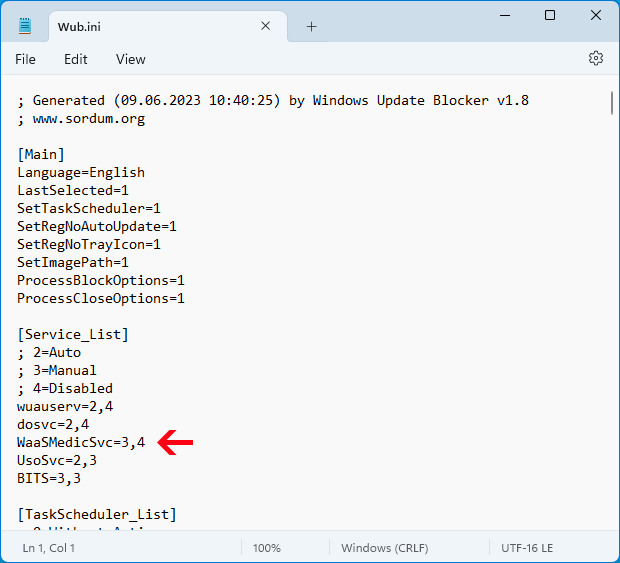
Begin by opening Wub.ini and inserting the target service name beneath the 'dosvc=2,4' entry...
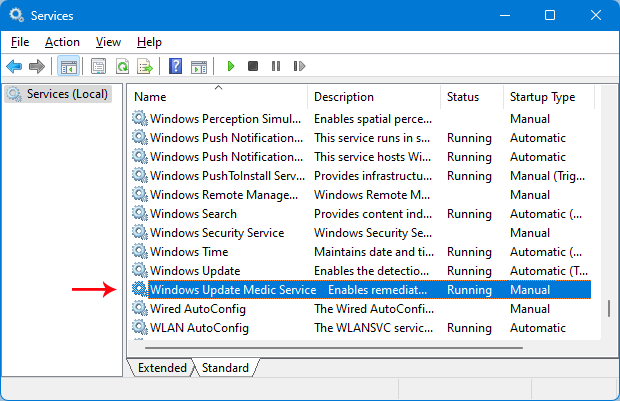
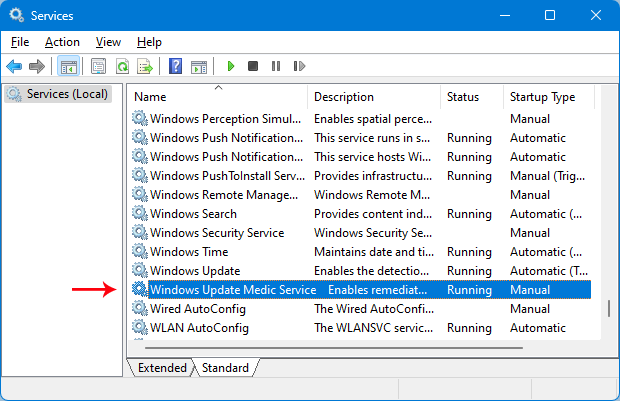
Locate the service in the Services console.
Launch the Services management panel and identify the target service.
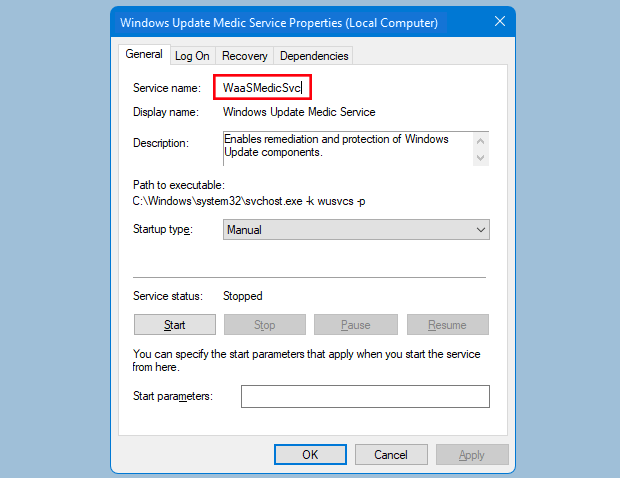
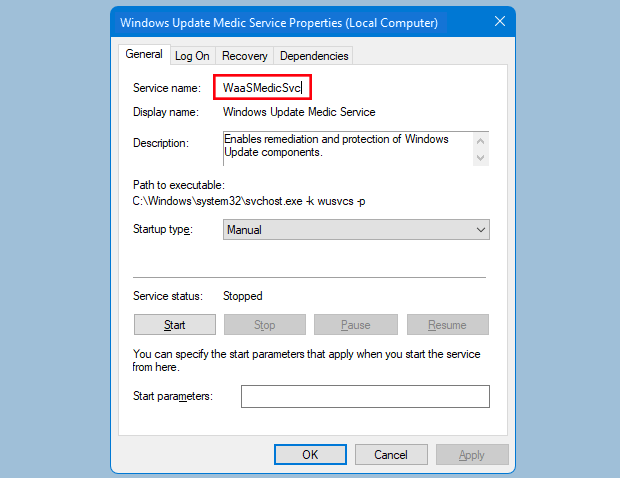
Select it and copy the internal Service Name.
Open its properties dialog and copy the value from the Service name box.
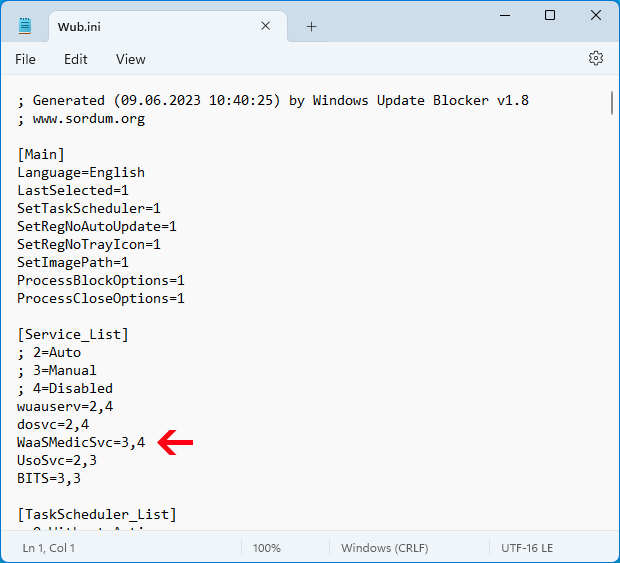
Insert below dosvc=2,4 inside Wub.ini.
Append the service entry within the Service_List area of Wub.ini.
Restoring Services
1. Launch Update Blocker, select enable services, then press Apply Now.
2. Remove the corresponding service entry from Wub.ini.
3. You may now pick disable services along with the Protect Services Settings checkbox.
Privacy & Compliance
No tracking transmitted. Your machine's configuration stays private. Nothing is gathered.